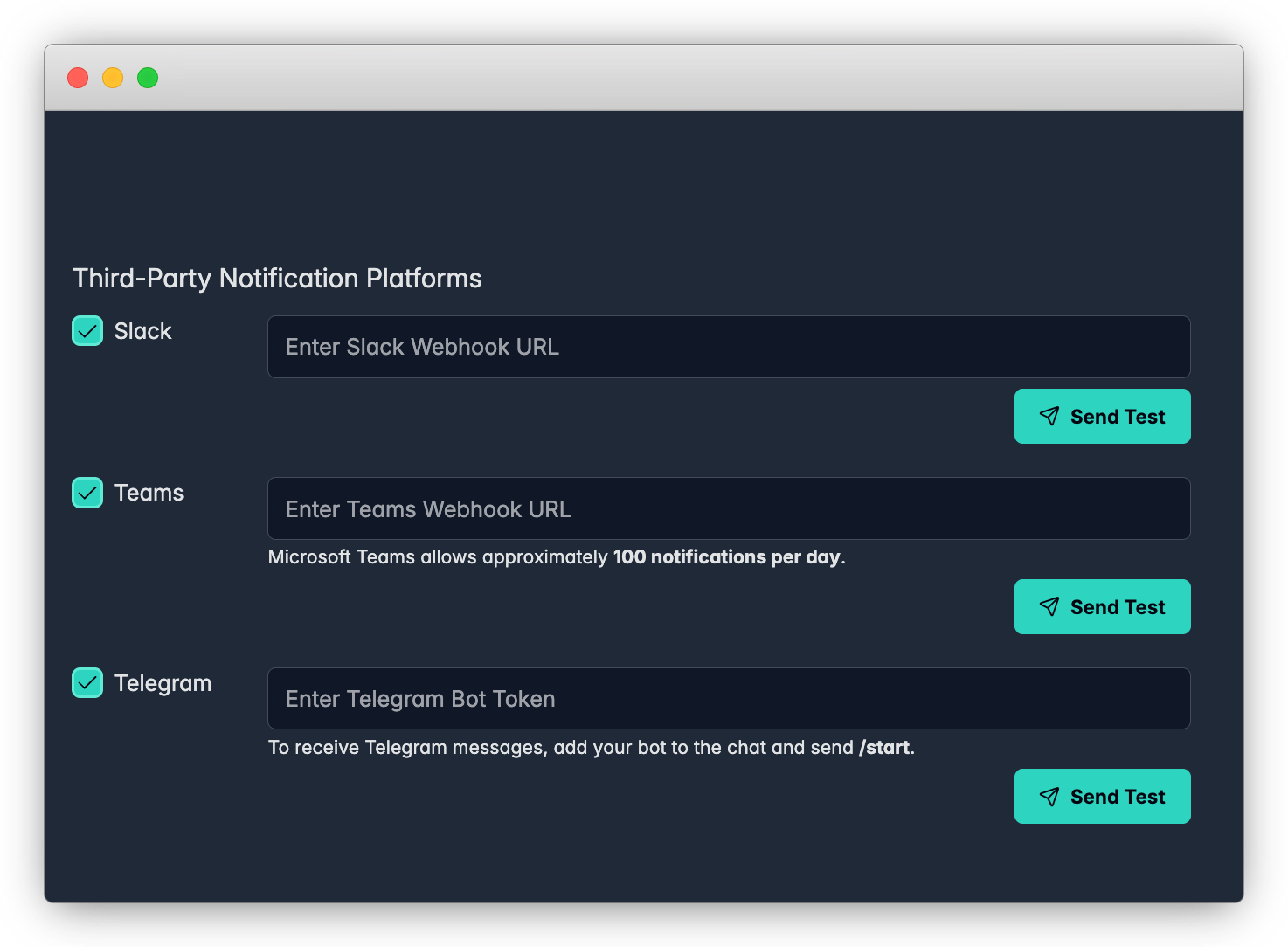

Teams integration

Notifications
.png)
Please refer to an official Microsoft Teams documentation in case of a struggle: https://learn.microsoft.com/en-us/microsoftteams/
Step 1 - Select the channel
In the New Teams client, select Teams and navigate to the channel where you want to add an Incoming Webhook.
.png)
Step 2 - Select More options
Select More options ••• on the right side of the channel name.
.png)
Step 3 - Select Manage channel
For members who aren't admins of the channel, the Manage channel option is available under the Open channel details option in the upper-right corner of a channel.
.png)
Step 4 - Select Edit
.png)
Step 5 - Search for Incoming Webhook and select Add.
The Incoming Webhook dialog appears.
.png)
Step 6 - Select Add.
Quicknote: If you’ve already added an Incoming Webhook, the Configure option appears.
Select Configure to create an Incoming Webhook.
.png)
Step 7 - Select name and image
Provide a name for the webhook and upload an image if necessary.
.png)
Step 8 - Select Create
Copy and save the unique webhook URL present in the dialog.
The URL maps to the channel and you can use it to send information to Teams.
.png)
Step 9 - Select Done.
The webhook is now available in the Teams channel.
You can copy it from clipboard and paste into the 123Cluster environment.
.png)